![logo ProovStation email.png]](https://kb.proovstation.com/hs-fs/hubfs/B2B/Logo/logo%20ProovStation%20email.png?height=40&name=logo%20ProovStation%20email.png)
1- Initial setup
- Power on the tablet. Ensure the device is in its factory state. If the tablet has any existing configurations or accounts, reset it to factory settings before proceeding.
- On the Welcome Screen, select your language and region
2- Connect to Wi-fi
- Connect to Wi-Fi and skip data copy. Select your Wi-Fi network from the list, enter the password to connect, and then choose the option to skip data copying when prompted.
3- Scan the QR code
- Enter the setup account. When prompted to log in to a Google account, enter afw#setup in the email field. This triggers the device to prepare for enterprise enrollment.
- Follow on-screen instructions to initiate device enrollment.
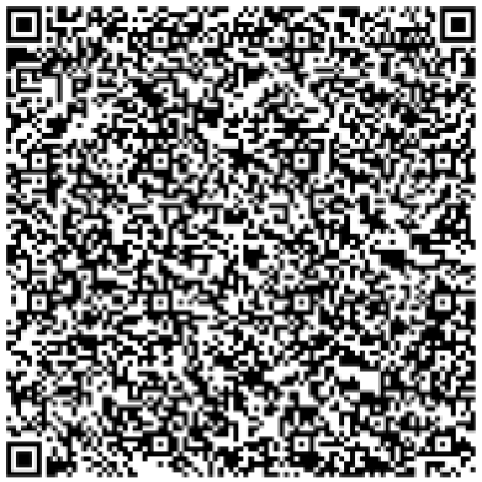
- Use the tablet's camera to scan the following QR code :
4- Apply Company Policies
- Once scanned, the tablet will automatically download and install the necessary corporate policies and configurations.
5- Finalize Setup
- Complete the setup. After the installation process completes, you'll land on the home screen. The pre-installed company apps will be available on the Apps screen.