![logo ProovStation email.png]](https://kb.proovstation.com/hs-fs/hubfs/B2B/Logo/logo%20ProovStation%20email.png?height=40&name=logo%20ProovStation%20email.png)
1- Create a manual inspection
- Connect to ProovStation cloud : app.proovstation.com
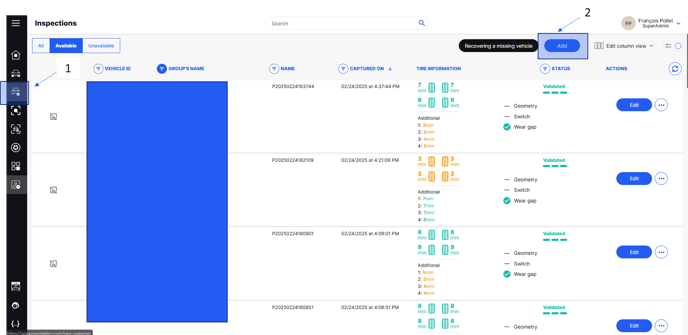
- Go in the Inspections menu (1)
- Click on Add (2)
- Select the Station where the inspection is performed
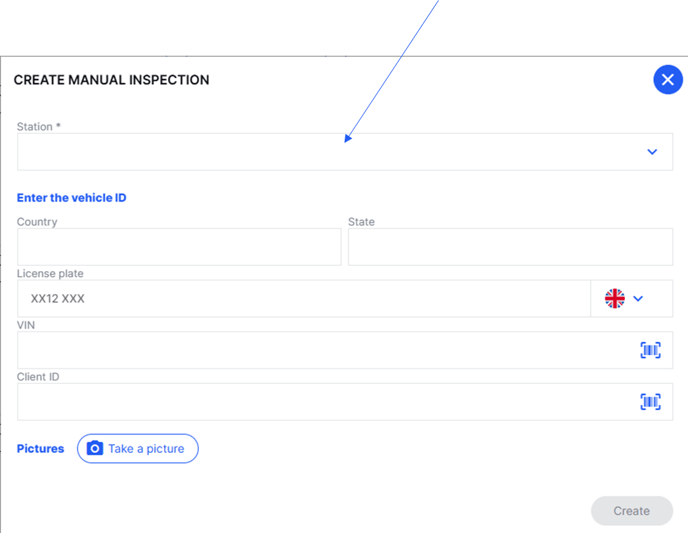
- Fill in all the informations you want
At least one way to identify the vehicle should be filled in :
- Licence plate
- Client ID
- VIN
2- Perform a car manual inspection
The car inspection is divided into different modules on the left.
Each module is described bellow
Depending the station chosen, not all modules are available to match the customer process.
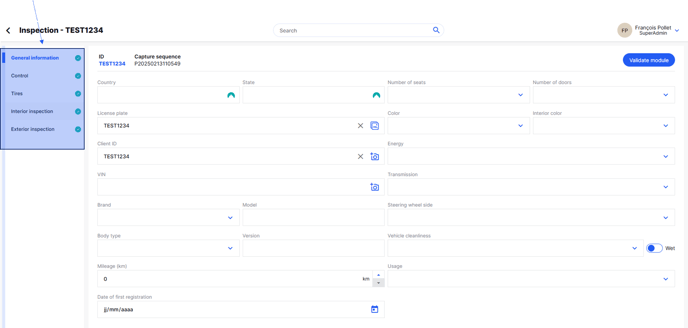
2.1- General Informations
Different informations concerning the car specifications.
It is possible to add or download pictures for some of the fileds by clicking on the icon on the right.
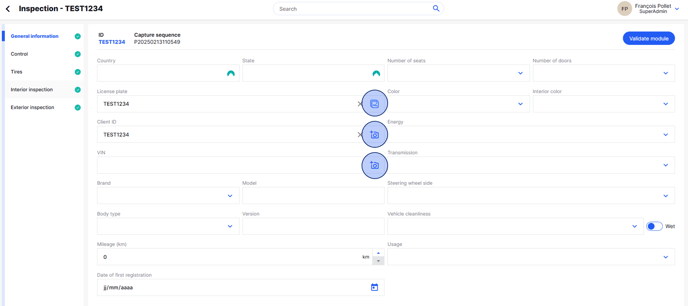
- A menu opens to ask to the inspector if he wants to use the tablett camera or download images stored on the device
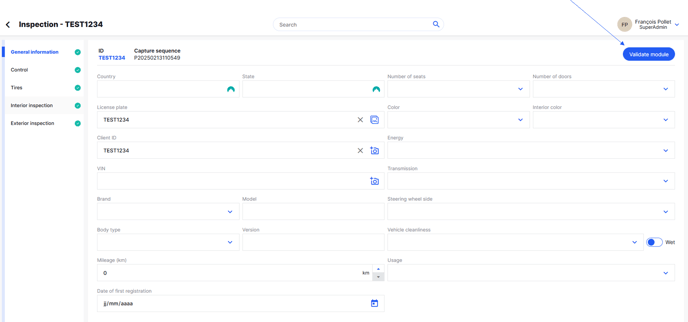
- Click on Validate module once all the informations correctly filled in
2.2- Control
Different controls that can be made by inspectors to complete the carbody inspection
- Mechanical controls
- Additionnal services
Depending the station chosen, not all controls are available to match the customer process.
Depending the station chosen, the button on the interface can be different
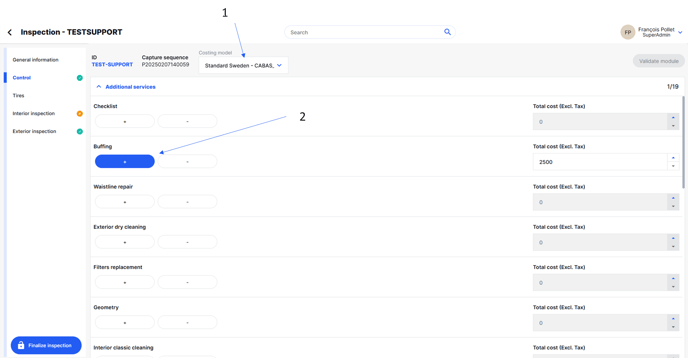
To add additionnal services :
- Select the costing model (1)
The same costing model will then be used for the entire inspection
- Add the needed service (2)
→ If additionnal services are costed in the costing model, costing report will be automaticcaly updated
Price can be modified manually if needed
Click on Validate module once all the informations correctly filled in
2.3- Tires
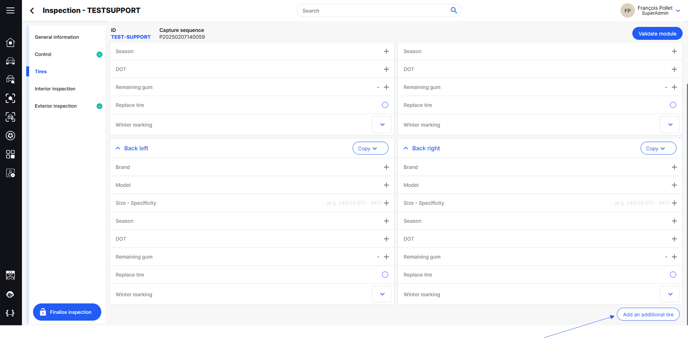
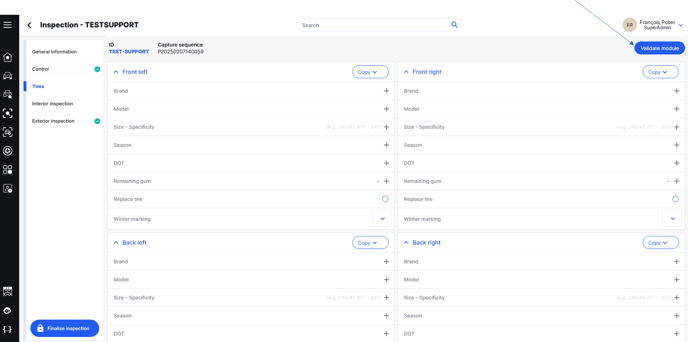
This module is used to fill in all tire information
- Fill in the tire informations
You can dupplicate informations from a tire to another one if needed
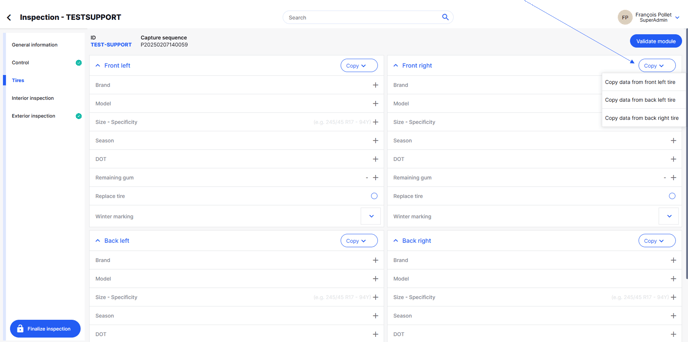
- Add additionnal tires if needed
Click on Validate module once all the informations correctly filled in
2.4- Interior inspections
This module is used to perform the interior inspection of the vehicle
To add a damage :
- Click on Take a picture to take a picture of the damage
The camera of tablett opens
- Select the element where the damage is located
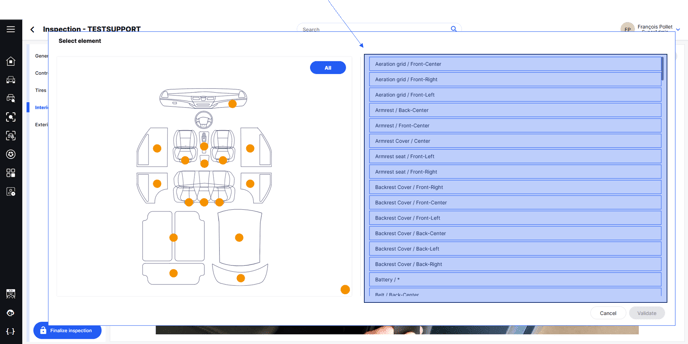
You can also select the element on the car drawing
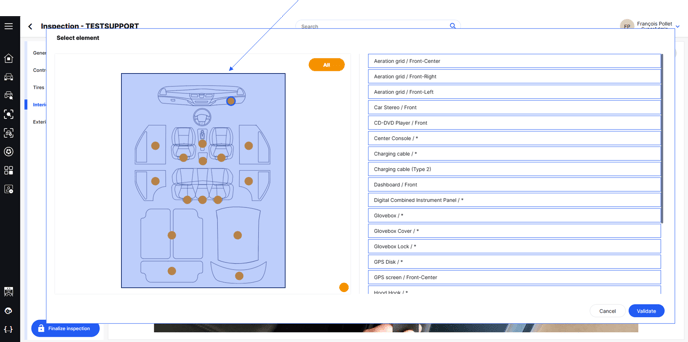
- Click on Add Damage
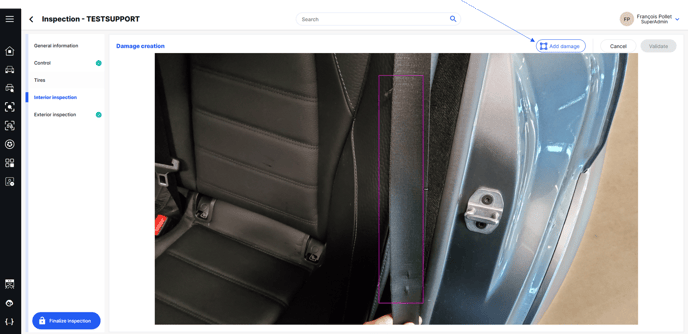
- Create a frame around the damage (frame called Bounding box)
- Select the corresponding damage in the Damage List
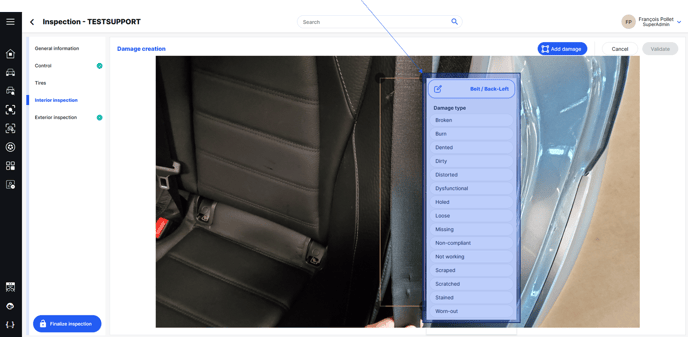
- Click on Validate
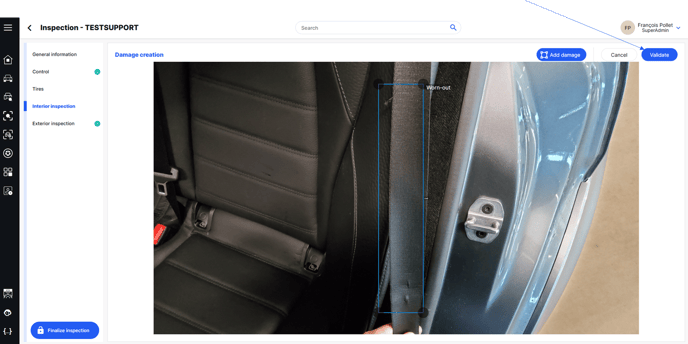
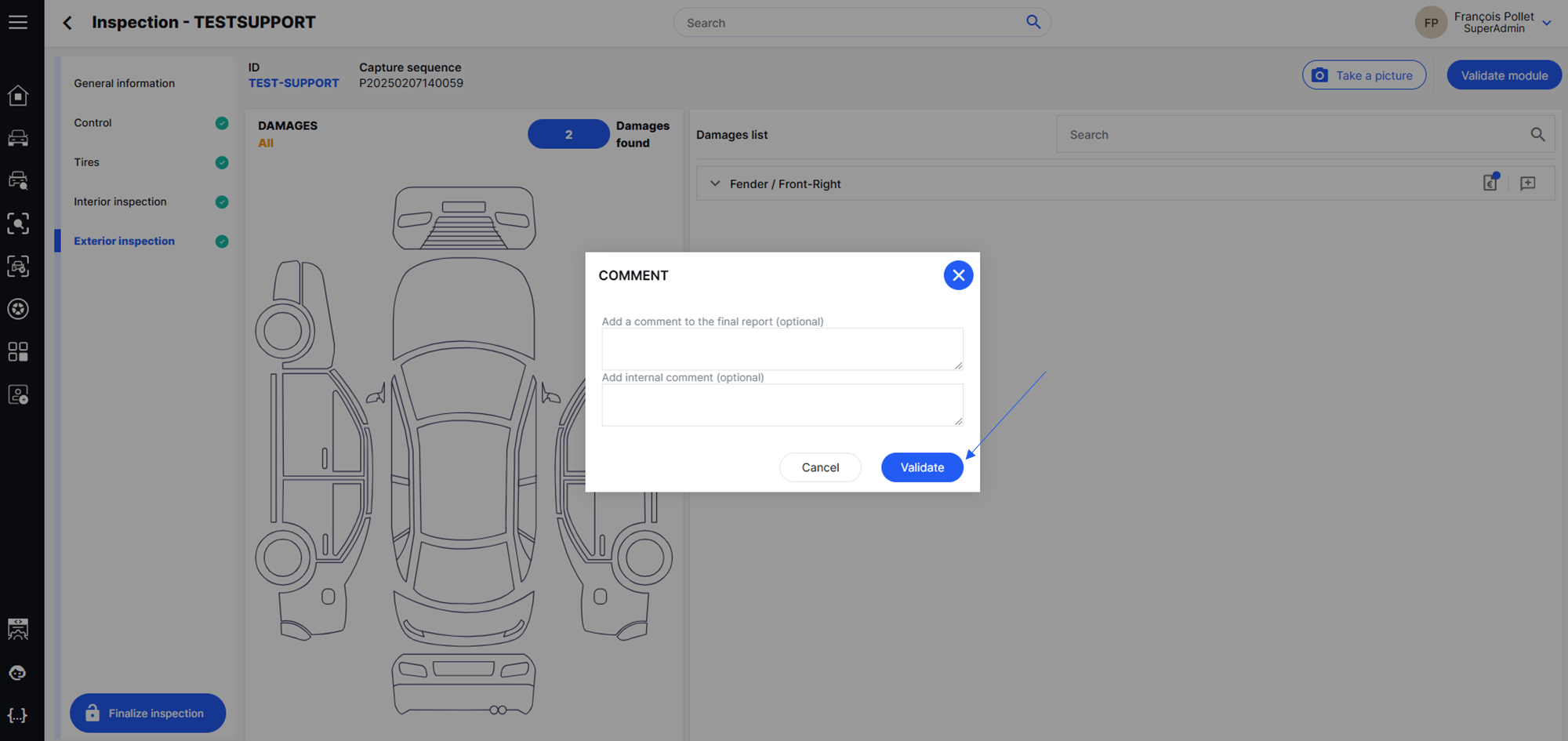
- Add a comment if needed
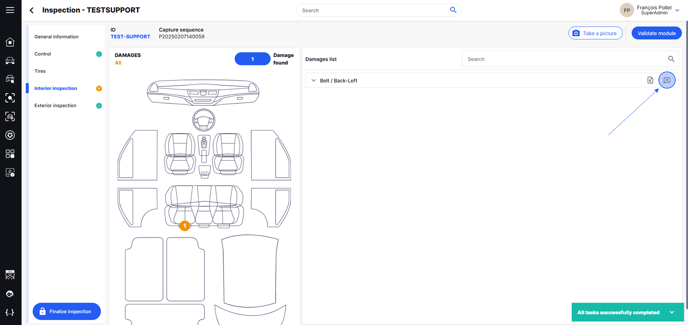
To add a repair type on the previous damage (cost a damage repair) :
- Click on the Costing button
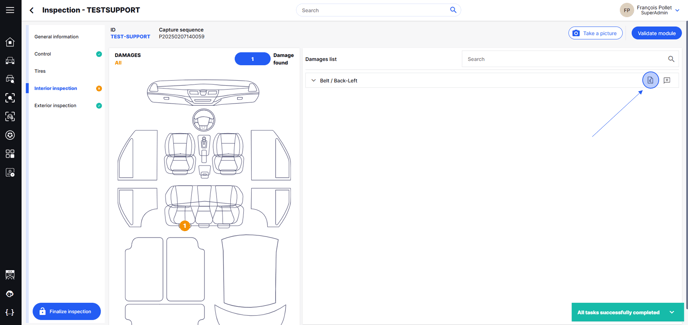
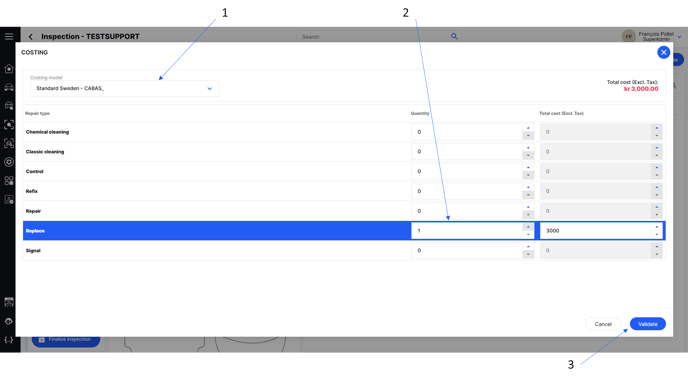
- Select a Costing model (1)
Do not change the costiong model if you already selected one for additionnal services.
Otherwise, all prices will be updated.
- Add the repair type needed with its quantity (2)
→ Price automaticcaly update if it is correctly set in the costing model
→ Price can be manually modified if needed
→ Tax automaticcaly updates if it is correctly set in the costing model - Click on Validate (3)
To perform the entire interior inspection :
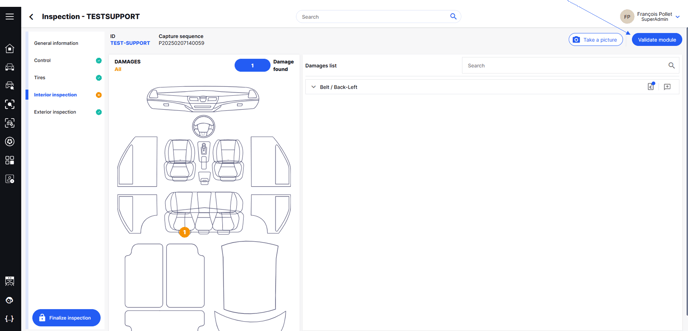
- Repeat the different actions above for all interior damage
- Click on Validate to validate the module
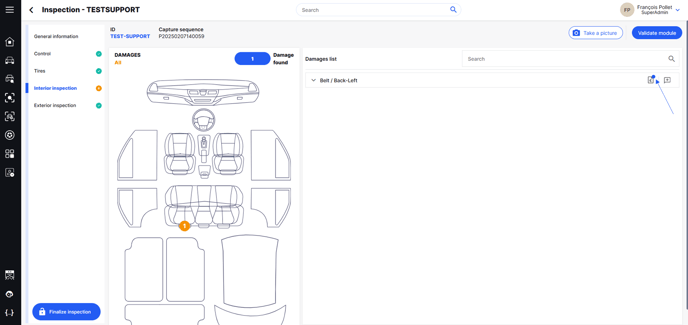
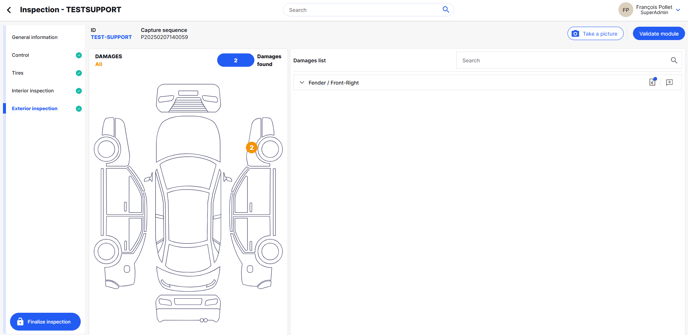
A blue dot appears if a comment and / or a costing was added on the damage
2.5 - Exterior inspections
This module is used to perform the exterior inspection of the vehicle
It follows exactly the same process as the interior inspections described above with exterior elements and damages.
2.6 - Finalize the inspection
- Click on Finalize Inspection
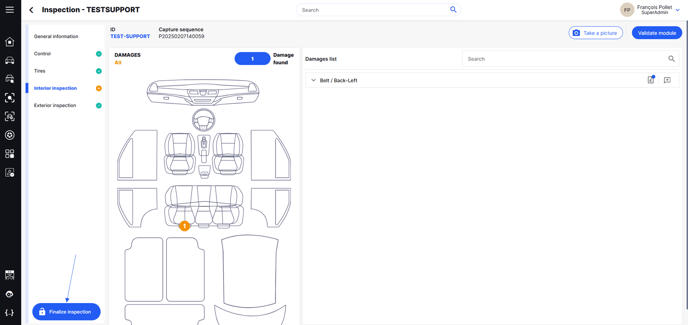
- Add a global comment if needed
- Click on Validate